
Docs: set up & sell with DonateBot
Everything you need to invite DonateBot, connect payouts, list products, and start selling roles and perks in your Discord server.
Quick start
- Invite DonateBot to your server with the button above (or from the homepage). Keep the requested permissions — DonateBot needs Manage Roles to deliver purchases automatically.
- Run
/setupin your server. This registers the server with DonateBot and gives you a link to your dashboard. - Connect payouts in the dashboard (Overview tab → Connect payouts). Pick your country — you do not need to finish verification to start selling, only to withdraw later.
- Create your first product in the dashboard: name, price, the role members receive, and whether it's a one-time purchase or a monthly subscription.
- Tell your members to run
/shopor/buy, or share your public shop page linked from the dashboard.
Inviting DonateBot
Adding DonateBot is free and doesn't require a credit card. The invite link requests the permissions DonateBot needs to run the shop: viewing and sending messages, embedding links, and — most importantly — Manage Roles, so it can assign the role a buyer just paid for. Place DonateBot's own role above any role you plan to sell in Server Settings → Roles: Discord never lets a bot grant a role positioned above its own.
Connecting payouts
DonateBot separates selling from withdrawing. You can create products and take payments right away — no identity verification needed. Verification (a short Stripe Connect flow) is only required the first time you request a payout, which keeps setup fast for servers that are still testing the waters.
In the dashboard's Overview tab, click Connect payouts and choose your country — this only needs to be done once, and it locks in the country your payout account is registered under, so double-check it before confirming.
Creating products
Each product links a Discord role to a price. When creating one, you choose:
- Name & description — shown in
/shopand on your public shop page. - Role — the Discord role granted automatically on payment.
- Price & currency — EUR or USD, minimum €0.50 / $0.50.
- Billing type — One-time (single payment) or Subscription (billed monthly; the role stays only while the subscription is active).
- Banner image — optional, shown on the public shop page.
A product can be fully edited (price, currency, role, billing type) only while it has zero paid sales. Once it has sales, you can still hide it from the store (existing subscribers keep being billed) or archive it — archiving keeps its purchase history intact.
Selling to your members
Members can buy in two ways, both landing on the same secure Stripe Checkout page:
/shop— posts every active product with a buy button, right in Discord./buy <product>— buys a specific product by name, with autocomplete.
Every guild also gets a public shop page on the web (linked from your dashboard's Overview tab) — useful for sharing outside Discord, e.g. in a Twitter bio or a community post. As soon as a payment succeeds, DonateBot assigns the role automatically; nothing to do manually.
Thank-you messages
Optionally, DonateBot can post a customizable message to a channel of your choice every time someone completes a purchase — title, description, footer, and color are all configurable from the dashboard. It's off by default; turn it on from the dashboard's settings tab.
Getting paid
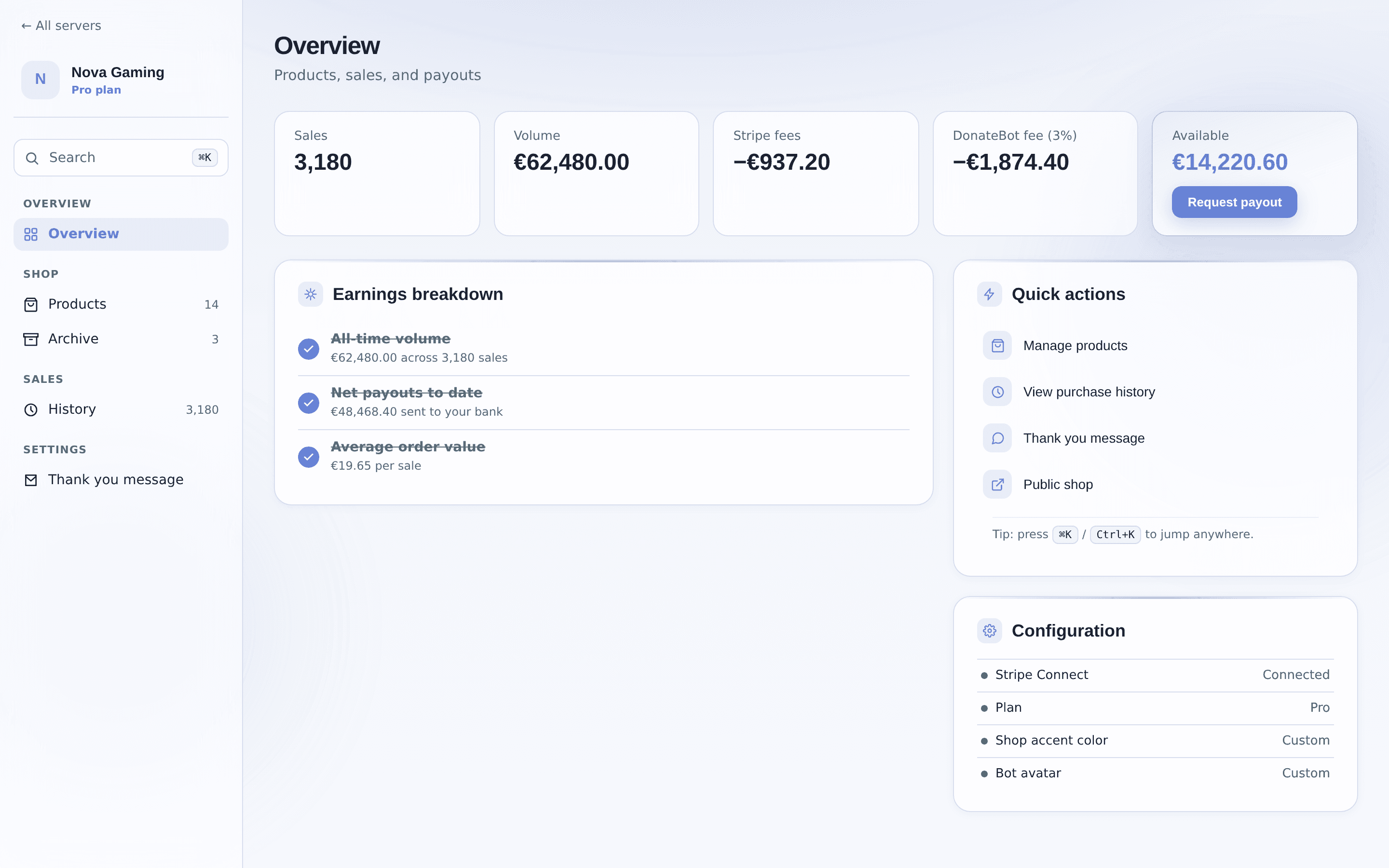
The dashboard's Overview tab shows your running numbers: sales count, volume, Stripe processing fees, DonateBot's platform fee, and your Available balance — what's actually withdrawable right now. Once that balance reaches €2, click Request payout. Funds you've just earned can take a few days to settle on Stripe's side before a payout is possible; if that happens, the dashboard tells you roughly when to try again instead of just failing silently.
The Basic plan
Basic is €5/month with a 3-day free trial, and unlocks per-server customization on top of everything in the free plan:
- Custom shop accent color — matches your server's branding on the public shop page.
- Custom bot avatar — DonateBot shows a different avatar in your server only.
You can subscribe with a card (auto-renews, cancel anytime from the dashboard's billing portal) or, if you have enough sales balance, redeem a month of Basic with your balance instead — no card required, doesn't auto-renew.
Fees & limits
| What | Value |
|---|---|
| Minimum product price | €0.50 / $0.50 |
| Minimum payout | €2.00 |
| DonateBot platform fee | 3% per successful sale (early access rate) |
| Card processing fee | Stripe's standard rate, paid by the buyer at checkout |
| Basic plan | €5/month, 3-day free trial, or pay with your own sales balance instead |
Command reference
| Command | What it does |
|---|---|
/setup | Registers your server, opens the dashboard link to connect payouts |
/shop | Posts a browsable list of your products with buy buttons |
/buy <product> | Buy a specific product by name (autocomplete) |
/help | Quick links: dashboard, website, support, invite |
FAQ
Do I need to verify my identity before I can sell?
No. You can invite DonateBot, create products, and start selling immediately with no ID verification. Verification (Stripe Connect KYC) is only required once you request your first payout.
What happens when someone buys a product?
The buyer pays through a secure Stripe Checkout page. As soon as the payment succeeds, DonateBot automatically assigns the linked role to the buyer — no manual action needed on your side.
Why wasn’t the role assigned after a payment?
The most common cause is role ordering: DonateBot’s own role must sit above the role you’re selling in Server Settings → Roles. Also check that DonateBot has the Manage Roles permission and that the buyer is still in your server. The dashboard’s History tab shows whether the payment itself went through.
One-time payment or subscription — which should I use?
One-time is a single payment for permanent (or manually revocable) access. Subscription bills the buyer monthly and keeps the role only while they stay subscribed. You choose per product when creating it.
Can I price in USD instead of EUR?
Yes, each product can be priced in EUR or USD independently. /shop and /buy show the right currency symbol automatically.
Can I edit a product after it has sales?
You can always toggle a product visible/hidden ("Hide on the store" stops new sales while existing subscribers keep being billed). Full edits to price, currency, role, or billing type are only allowed while a product has zero paid sales — archive it and create a new one instead.
How do I get paid?
Open the dashboard → Overview tab → connect a payout account (Stripe Connect, pick your country). Once you have at least €2 in Available balance, click Request payout.
What is the Basic plan for?
Basic (€5/month, 3-day free trial) unlocks a custom shop accent color and a custom bot avatar for your server. You can pay by card or, if you have enough sales balance, redeem a month of Basic without a card at all.
Support
Stuck on something not covered here? Join the DonateBot Discord and open a support ticket, or use /help in your own server for quick links.
Legal: Terms · Privacy · Refund Policy